Automated Non-Production Environment Scheduling
1. Executive Summary
This document describes the high-level design for automating the start and stop schedule of non-production Google Cloud resources.
The solution aims to reduce cloud costs while maintaining operational flexibility through automated scheduling and manual controls.
:::tip Key Benefits
- 💰 Reduce cloud costs
- ⏰ Automatic scheduling
- 🚀 Manual override
- 🔒 Centralized governance
- 📊 Audit logging
:::
2. Background & Motivation
Non-production environments such as Development, QA, and Staging are typically only used during business hours.
However, Compute Engine and Cloud SQL instances continue running throughout nights and weekends, resulting in unnecessary cloud costs.
Challenges
- No automation for shutting down idle resources.
- Teams manually start and stop resources inconsistently.
- Increasing infrastructure results in increasing costs.
- No centralized governance or audit trail.
:::warning Industry Benchmark
Organizations typically achieve 50–70% cost reduction by implementing scheduled shutdown for non-production environments.
:::
3. Objectives
The solution aims to:
- Reduce cloud spend.
- Automate start and stop schedules.
- Support both automatic and manual operations.
- Improve visibility and governance.
4. Scope
The following resources are included:
- Compute Engine (Non-Production)
- Cloud SQL (Non-Production)
- Scheduling Automation
- Governance Workflow
5. High-Level Concept
5.1 Automated Scheduling
Each environment is assigned:
| Configuration | Example |
|---|---|
| Start Time | 08:00 SGT |
| Stop Time | 20:00 SGT |
| Weekend | Disabled |
Different teams may use different schedules.
5.2 Manual Start / Stop
When necessary, teams can manually trigger:
- Start Non-Production Environment
- Stop Non-Production Environment
Typical use cases include:
- Weekend work
- Emergency fixes
- Production support
- Extended testing
6. Design Principles
6.1 Cost Efficiency
Resources should only run when providing business value.
6.2 Flexibility
Teams can use either automated schedules or manual operations.
6.3 Governance
DevOps manages standards and approvals.
6.4 Transparency
All actions are logged.
6.5 Safety
Automation only applies to non-production resources.
7. High-Level Architecture
flowchart LR

Developer --> GitHubActions

Cron --> GitHubActions

Configuration --> GitHubActions

GitHubActions --> GCP

GCP --> AuditLogs
8. Operational Workflow
8.1 Scheduled Automation Using GitHub Actions
Workflow execution:
- GitHub Actions is triggered by cron.
- Configuration is loaded.
- Project status is evaluated.
- Compute Engine instances are started or stopped.
- Cloud SQL instances are started or stopped.
- Execution logs are recorded.
flowchart LR

Cron --> Config

Config --> Status

Status --> StartStop

StartStop --> GCP

GCP --> Audit
8.2 Manual Control by TPM
Technical Project Managers can manually trigger the workflow.
Supported operations:
- Start Environment
- Stop Environment
Common scenarios:
- Weekend deployment
- Extended testing
- Emergency debugging
- After-hours development
9. Governance & Ownership
9.1 DevOps Team
Responsibilities:
- Maintain automation
- Review configuration changes
- Ensure security
- Monitor execution
- Provide onboarding guidance
9.2 Application Teams / TPM
Responsibilities:
- Maintain schedules
- Update Project Status
- Trigger manual workflows
- Notify DevOps of new resources
10. Expected Cost Savings
Typical runtime reduction:
| Before | After |
|---|---|
| 168 Hours / Week | ~60 Hours / Week |
Estimated savings:
Approximately 60–70% reduction in non-production cloud costs.
11. Implementation
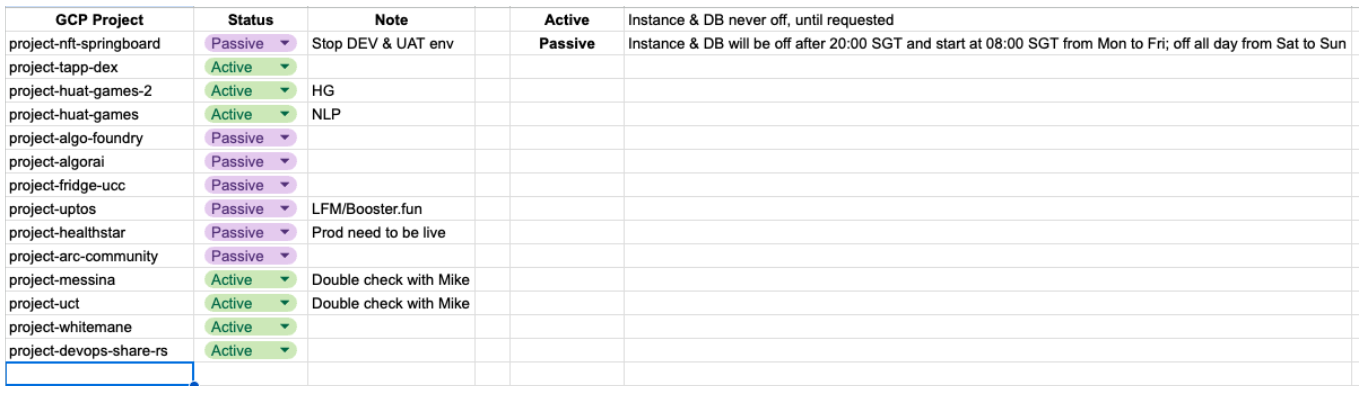
11.1 Automated Workflow
GitHub Actions executes automatically.
| Time | Action |
|---|---|
| 08:00 SGT | Start Compute Engine & Cloud SQL |
| 20:00 SGT | Stop Compute Engine & Cloud SQL |
Applies to:
- Development
- Staging
- UAT
11.2 Manual Workflow
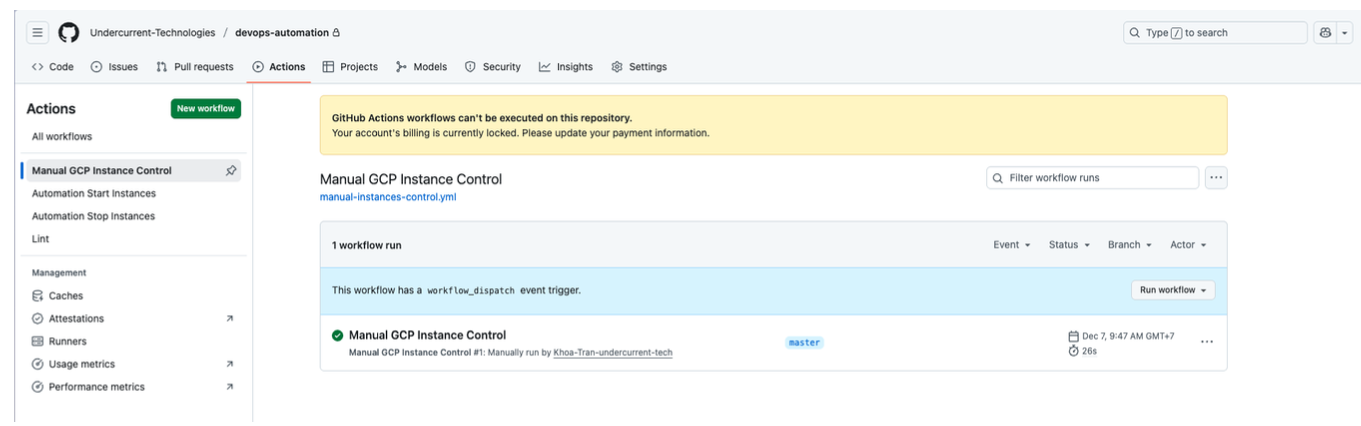
Repository:
https://github.com/Undercurrent-Technologies/devops-automation
Navigate to:
Actions
└── Manual GCP Instance Control
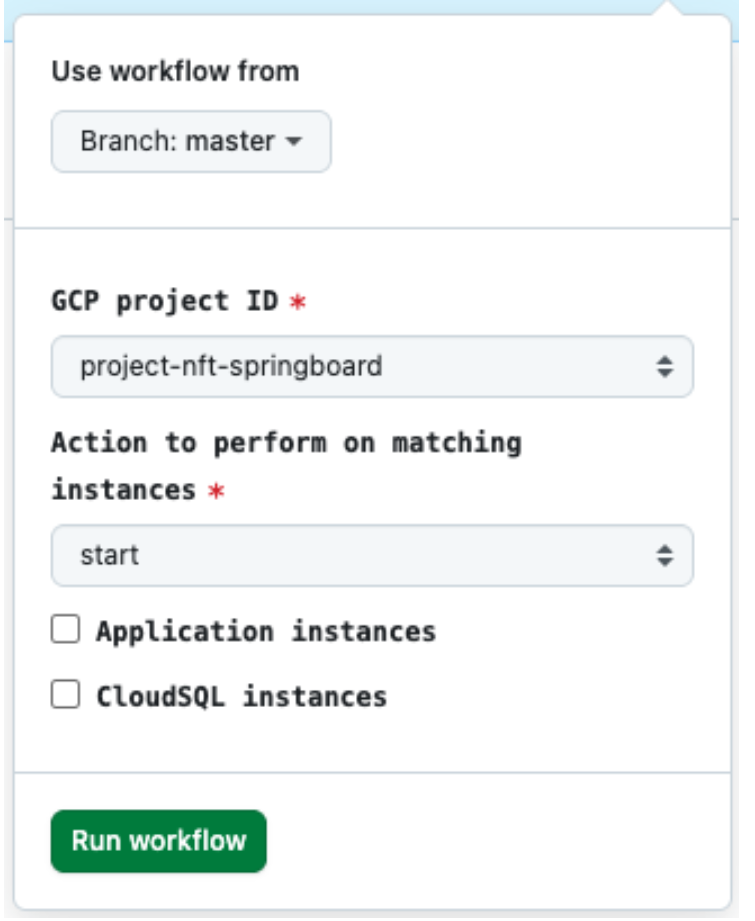
Required inputs:
| Parameter | Description |
|---|---|
| GCP Project ID | Target project |
| Action | Start / Stop |
| Instance Type | Application, Cloud SQL, or Both |
Click Run workflow to execute the selected action.